
Getting started
The steps from installing to the first result.
1Install and start
Download the installer from Download and run it. The first start of Turbrix needs no setup and opens in local mode. When the right end of the title bar shows “Local mode · This PC”, the engine is ready.
Turbrix starts in Korean when the Windows display language is Korean, otherwise in English. Change it under Tools ▸ Language. Select the light or the dark theme under View ▸ Theme.
2Register a data source
Open Tools ▸ Data Sources. Select the type, enter host, port, database, user and password, save, and verify with “Test connection”. Oracle needs nothing else installed either (System requirements).
A registered data source is shown on the left, in Task Explorer under “Data sources”, with its schemas and tables.
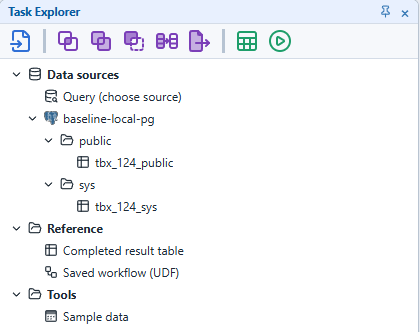
A file does not have to be registered as a data source. Place File, from the icon row at the top of Task Explorer, on the canvas and select the file (csv, txt, tsv, dat) and its delimiter.
3Place Tasks on the canvas
- Drag a table from Task Explorer onto the canvas. A Query Task that queries the table is created.
- In Condition, on the right, set the columns to query and the conditions (WHERE).
- To join two results, place Join from the icon row on the canvas, connect the two Tasks to it, and select the join columns in Condition.
- From the SubTask toolbar of Task Property, add filter, sort, summary, calculation, column selection and pivot in the order you need.
- With the last Task selected, double-click Report in the icon row. A Report is the Task that outputs the result.

4Validate and run
| Action | Menu | Shortcut |
|---|---|---|
| Validate | Run ▸ Validate | Alt + F5 |
| Run | Run ▸ Run | F5 |
| Partial run | Run ▸ Partial Run | Shift + F5 |
A run is added as a new item at the top of Execution Explorer, below, and its status is updated as it goes. A run needs at least one Report, and every Task must be connected to a Report.
5View the result
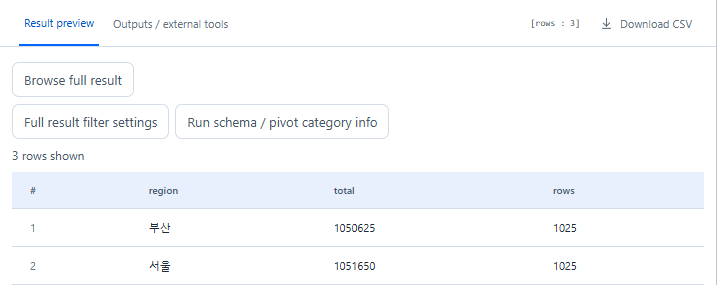
When the run is complete, press “View Results” in Execution Explorer. One result tab opens for each Report. “Result preview” shows the first 200 rows; save the whole result with “Download CSV” or view it under “Browse full result”. Charts, reports and other file formats are on the “Outputs / external tools” tab.
6Save
File ▸ Save (Ctrl + S) saves the canvas to the data folder on your PC. To move it to another PC, save it as a file (JSON) with Save To File and open it with Open From File.
7Where data is kept
| Item | Location |
|---|---|
| Saved canvases, run records and results, temporary data | %LOCALAPPDATA%\Turbrix\Local\data |
| Engine log | %LOCALAPPDATA%\Turbrix\Local\logs\engine.log |
Results are not deleted automatically. Under “Storage” in the options, check the usage and set how long results are kept.
8Use the paid edition
Open “Options” at the right end of the title bar and press “Sign in with Google” under “Subscription”. Complete the sign-in in the browser and return to Turbrix. How to subscribe and the price are on Pricing.