
Query
Just select the table
and the conditions
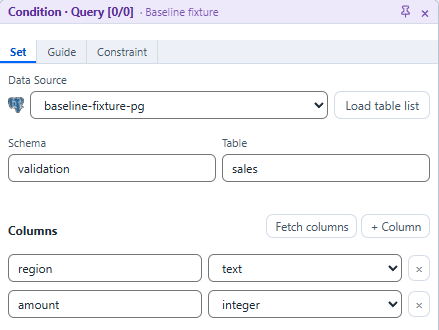
Select the schema, table and columns, then add WHERE conditions.
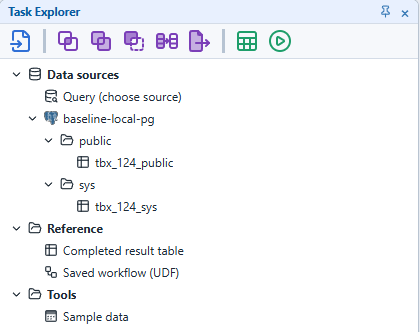
Register data sources, connect Tasks on a canvas, and run.
Register them under Tools ▸ Data Sources.
| Type | Also install | What you enter |
|---|---|---|
| PostgreSQL | nothing | host, port, database, user, password, TLS mode |
| MySQL / MariaDB | nothing | host, port, database, user, password, TLS mode |
| SQL Server | nothing | host, port, database, user, password, TLS mode |
| Oracle | nothing | host, port, service name, user, password |
| Delimited file | nothing | the file (csv, txt, tsv, dat), delimiter, encoding, first data row |
Query
Select the schema, table and columns, then add WHERE conditions.
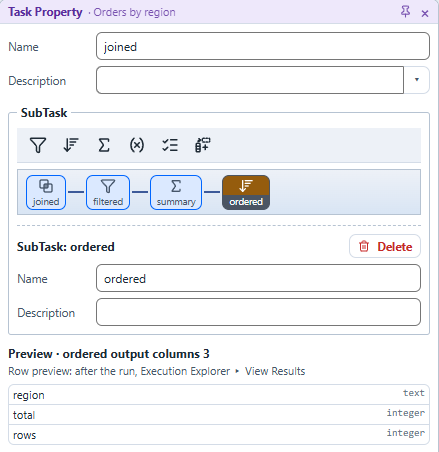
Place Tasks and connect them with lines to complete a workflow. SubTasks process a Task's result step by step.

| Task | Description |
|---|---|
| Query | Queries a table of a data source, with conditions (WHERE). |
| File | Reads a delimited file or pasted text. |
| Join | Joins two results on the columns you specify. |
| Merge | Aligns the columns of two results and combines them. |
| Difference | Extracts the rows found on one side only. |
| Query Drive | Uses the result values of the previous Task as conditions of the next Query. |
| Table | Uses the result of a completed run as an input. |
| UDF Query | Reuses a saved canvas as a Task. |
| Report | Outputs the result. |
| SubTask | Description |
|---|---|
| Filter | Extracts only the rows that match a condition. |
| Sort | Sorts by the columns you specify. |
| Summary | Groups by key columns and calculates sum, count, maximum and minimum. |
| Calculate | Creates new columns from expressions. |
| Output Columns | Sets the output columns, their order and aliases. |
| Pivot | Converts row values into columns. |
SubTask
The output columns of each step are shown before you run.
Workflows run on your PC.
View results as grids and charts, and save them as files.
Report
Save it as CSV, SQLite or Parquet files, or open it in Excel.
| Output | Description | Edition |
|---|---|---|
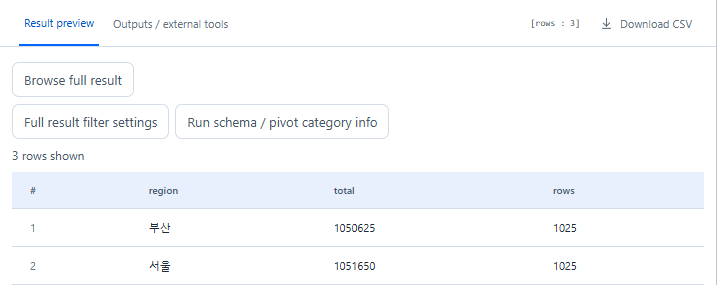
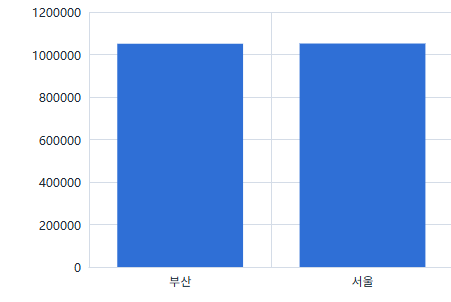
| Result preview | Shows the first 200 rows as a grid. | free · paid |
| Browse full result | Supports paging, sorting and condition filters. | free · paid |
| CSV | Saves the whole result as a file. | free · paid |
| SQLite, GZIP | Created together with the CSV when selected in the output settings. | free · paid |
| Charts and reports | Saved as an HTML report, PDF, PNG or JPG. | free · paid |
| Excel | Opens the result CSV in the Excel installed on the PC. | free · paid |
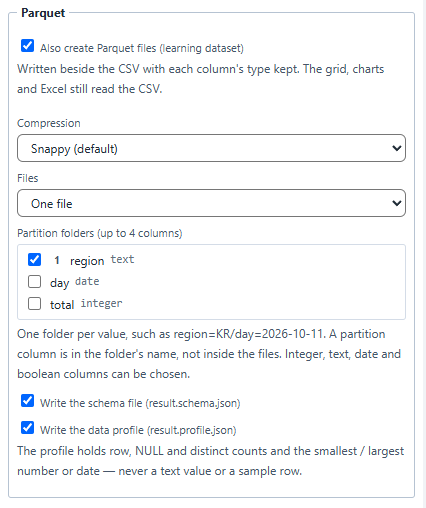
| Parquet | Saves a file that keeps the column types. | paid |
Parquet
Set compression, file splitting and partition folders.
Apply train / validation / test splits, sampling, missing-value handling, encoding and normalisation as SubTasks. The values used for each transformation are saved as a file.
Map columns to roles and save them as JSONL.
Select hashing, tokenisation or partial masking for each column.
Open the result in Power BI Desktop.
Saved canvases and results are kept in the data folder on your PC, %LOCALAPPDATA%\Turbrix\Local\data.
Options ▸ Storage

AI agents can do what you do on the screen.
MCP
Turbrix provides its features as MCP tools, so AI agents can work with it. The in-app chat window runs on your own AI API key.
 Turbrix canvas
A team works together by connecting to a Turbrix installed on a company server.
Contact: turbrix@seizia.com