
Export database data to Excel
Choose a table in Oracle, SQL Server, PostgreSQL or MySQL, set the conditions, and open the result in Excel.
1Steps
- Register the data source in Tools ▸ Data Sources. Oracle needs nothing else installed.
- Drag a table from the Task Explorer onto the canvas. A Query Task that reads the table appears.
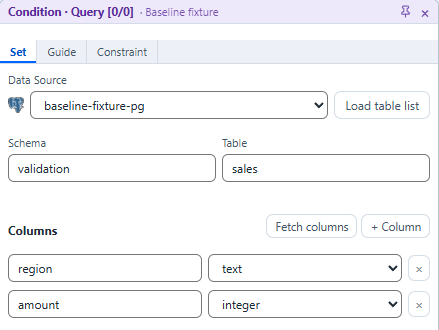
- Set the columns and the conditions (WHERE) in Condition on the right.
- Connect a Report and run (F5).
- When the run ends, open the result CSV in Excel from the result view.
2How Excel opens the result
The result is saved as UTF-8 CSV with a BOM, so Excel reads every language correctly. EUC-KR can be chosen in the Report's output settings. Turbrix does not write Excel workbooks (.xlsx).
3Run it on a schedule
A scheduled run starts at the time you set. With ‘Save the CSV after the run’ on and a path set in the Report's Condition, each run saves the CSV to that path. Scheduled runs while Turbrix is closed are part of the Pro plan.
4Excel's row limit
An Excel worksheet holds 1,048,576 rows (Excel specifications and limits). Filter or aggregate a larger result in Turbrix before you open it (Data larger than Excel).
5Supported databases
The data sources you can register are in the data source table of the features page. To use tables of several databases together, see Join different databases.